Skip to content
Resource 01

ChatGPT Quick Start Guide.

Small steps for higher education: organize your work, pick the right settings and let ChatGPT handle the repeats.

Download printable PDF

Reviewed 2026-10-15 · Revision 1af32d510f58

01

Start here: the app, Chat and Work

Get the app

Get the official ChatGPT app and sign in with your .edu account

Install ChatGPT on your computer first for the broadest agent features. Work handles supported multi-step tasks in a browser, but some are desktop-only. Skip search ads, which lead to look-alike apps. OpenAI app guide.

  1. On your computer, type chatgpt.com/download into the browser address bar.
  2. Install the app for Mac or Windows. The publisher must be OpenAI.
  3. Open the app and choose Log in. Enter your full campus email address, the one ending in .edu.
  4. Finish your campus sign-in.

Signed in with a personal email? Log out and sign in again with your .edu address so you get your campus plan and its data privacy. For your phone later, install only the app published by OpenAI.

Choose a mode

Chat or Work? Pick the mode at the top of the screen

Chat

Talk it through

Questions, quick drafts and explanations. You stay in the conversation and steer each reply.

Work

Hand off a job

Multistep tasks that produce a finished file, such as a report or slide deck. ChatGPT plans, uses your tools and reports back.
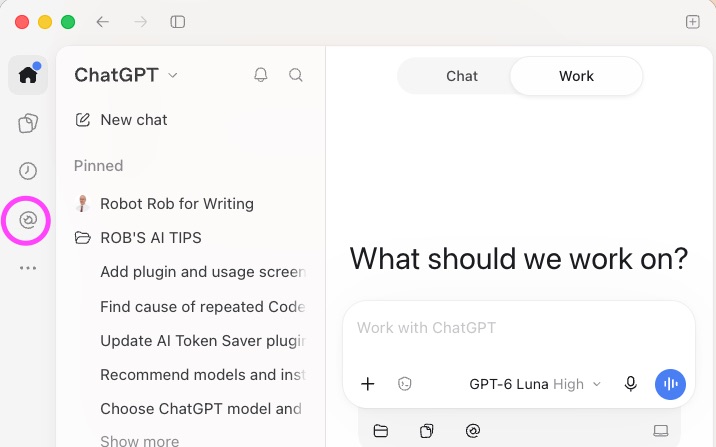
ChatGPT home screen with the Chat and Work switch at the top center, Work selected
From this home screen, select the Customize icon circled in magenta to open plugin settings.

Quick win: Install the SharePoint plugin. Open a new chat, type @sharepoint to add the plugin to the chat, then type: "Find five recent documents and give me a one-line summary of each."
02

Projects, models and scheduled tasks

Organize

Put each ongoing job in a Project

A Project is a folder for chats, files and instructions about one job. Every new chat in it starts with that context, so you stop re-explaining.

Stop repeating yourself

Write project instructions once, such as audience, tone and format. Every chat in the project follows them.

Keep files in reach

Upload the syllabus, policy or template once. ChatGPT draws on it in every project chat.

Keep work separate

Project-only memory keeps a project's chats apart from your other conversations. Shared projects always use it.

  1. Pick one recurring job, such as a course, committee or weekly report.
  2. Create a project and name it after that job.
  3. Add two or three reference files and a few lines of instructions.
  4. Move related chats into the project. They pick up its instructions and files.

Share a project with Edit or Chat access when a colleague needs the same context. Use approved, de-identified files and follow your student-data policy.

Pick a model and effort

Match the model to the work. Start at low effort.

Low

Narrow and repeated

Try GPT-6 Luna at Low for sorting, extraction or a task with a clear right answer.

Low or Medium

Judgment across sources

Use GPT-6.1 Sol at Low or Medium for reports, reconciling documents and multistep work. Use the lowest effort that passes your check.

Higher, plus review

Consequential decisions

Increase effort when needed and add human review. Keep scope explicit. Consult your campus policy and the current Model Value Map.

Raise effort only after a result fails your check. Higher effort takes more time and usage. Menu labels and models vary by account and campus settings.

Open the AI Model Value Map

03

Models, versions and effort

A SIMPLE ANALOGY

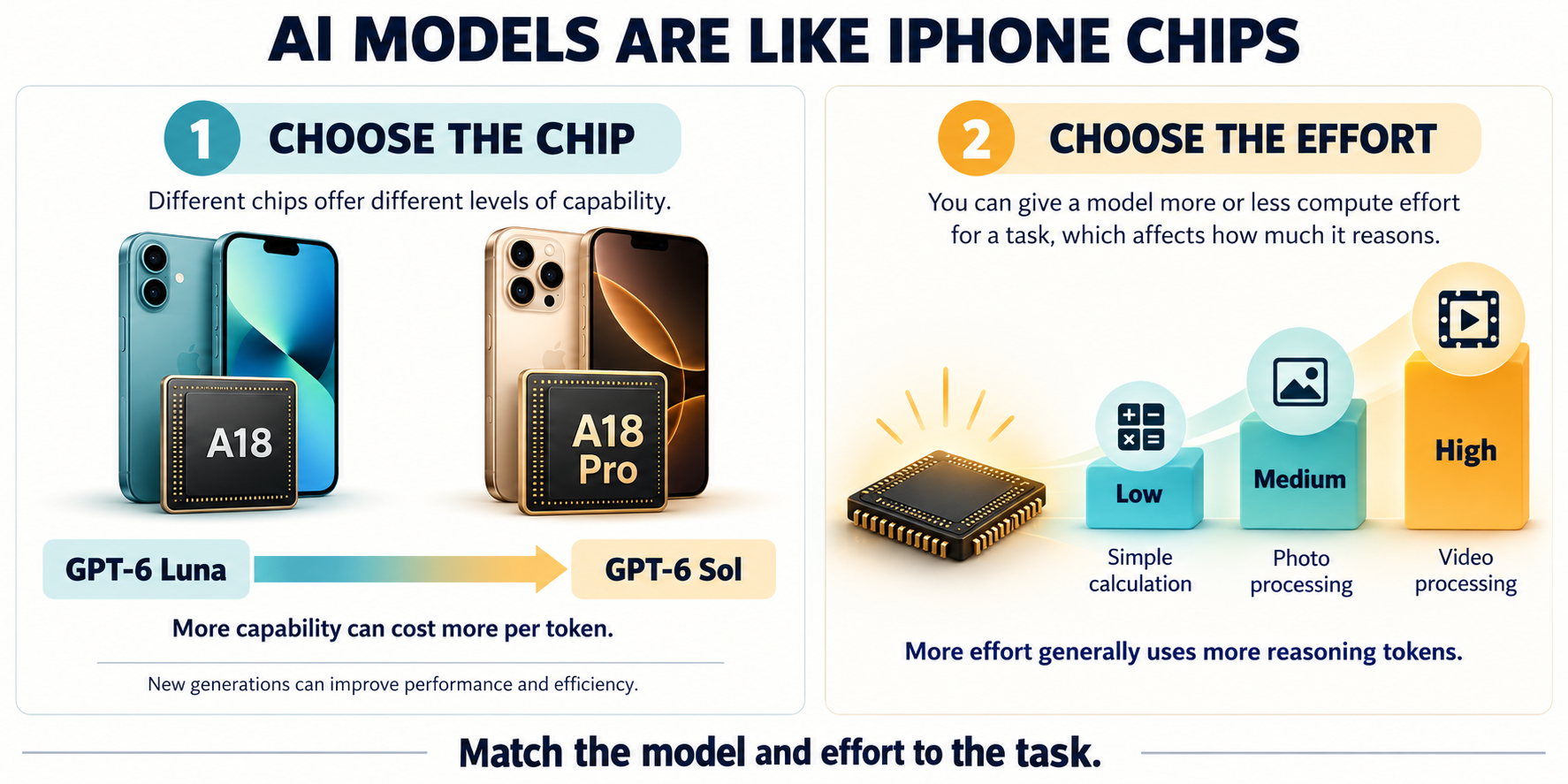
AI models are like the chips inside iPhones.

Two-panel illustration comparing how to choose a chip tier with how to choose an AI model and effort level.
The chip comparison is an analogy for model tiers and effort. AI models do not run on iPhone chips.

Family and model: Apple’s A-series includes different chip tiers. The iPhone 16 uses A18, while the iPhone 16 Pro uses A18 Pro. Similarly, GPT-6 Luna and GPT-6 Sol offer different capability tiers within an AI family.

Version: A newer chip generation can be both more powerful and more efficient. Apple reported that A18 Pro offered up to 15% faster CPU performance, or the same workload using 20% less power, compared with A17 Pro. AI releases can improve capability and efficiency in a similar way. Apple’s announcement

Effort: The same chip can handle a quick calculation or spend more computation processing a video. Likewise, you can give an AI model Low, Medium, or High effort, even for the same question.

Usage: Moving from Luna to Sol can cost more per token. Increasing effort generally uses more reasoning tokens and takes longer. A stronger model does not necessarily use more tokens, but each token can be more expensive. OpenAI’s reasoning guide

Choose the capability the task needs, then give it enough effort to produce a reliable result.

04

Usage credits and scheduled work

Check your allowance

Work and Codex share usage. Check what is left.

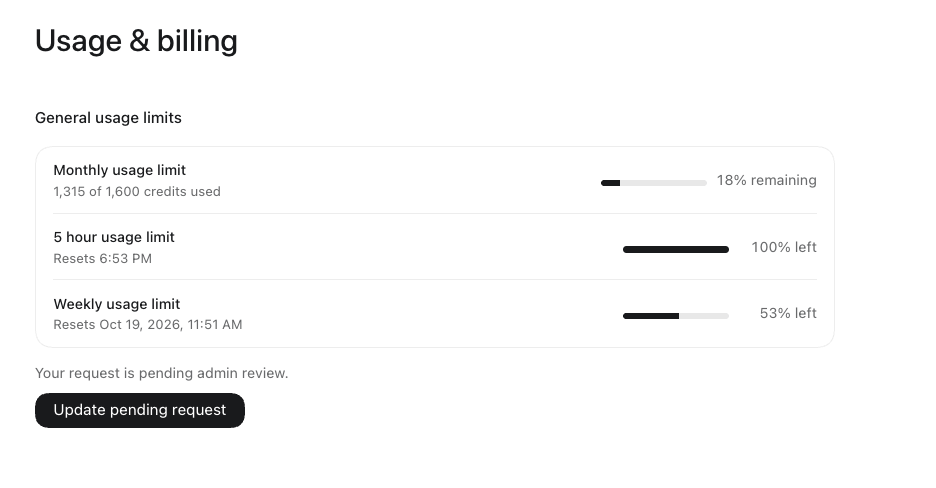
In the desktop app, open your profile menu > Settings > Usage & billing. Check that you are in CES ChatGPT. The monthly credits, five-hour limit and weekly limit are separate controls; read each remaining amount and reset time.

Usage & billing example showing 1,315 of 1,600 monthly credits used, 18 percent remaining, 100 percent left in the five-hour window and 53 percent left in the weekly window.
Example from October 15, 2026: 285 monthly credits remain (1,600 minus 1,315), about 18%. Your balance, limits and reset times will differ.

This allowance covers ChatGPT Work and Codex on plans that share credits. Regular Chat has separate limits. Credits are billing units, not tokens or a fixed number of messages. If a limit is reached, follow the reset or request options shown in your account; campus settings determine access.

Scheduled tasks

Let ChatGPT show up on a schedule

Monday

Open items and deadlines.

Wednesday

Find stale documents in an approved shared folder.

Friday

Draft a weekly update for review.

  1. Open Scheduled when available, or describe the task and when it should run.
  2. Choose a one-time or recurring schedule. Supported connected apps may offer event triggers.
  3. Review the account, sources, instructions and permissions before relying on a run.
  4. Check results and paused tasks in Scheduled.

Computer-bound tasks need that device available. Cloud tasks have different requirements. If a task's model retires, update it before the next run.

05

Find and use CES plugins

Find plugins

Open Customize > Plugins

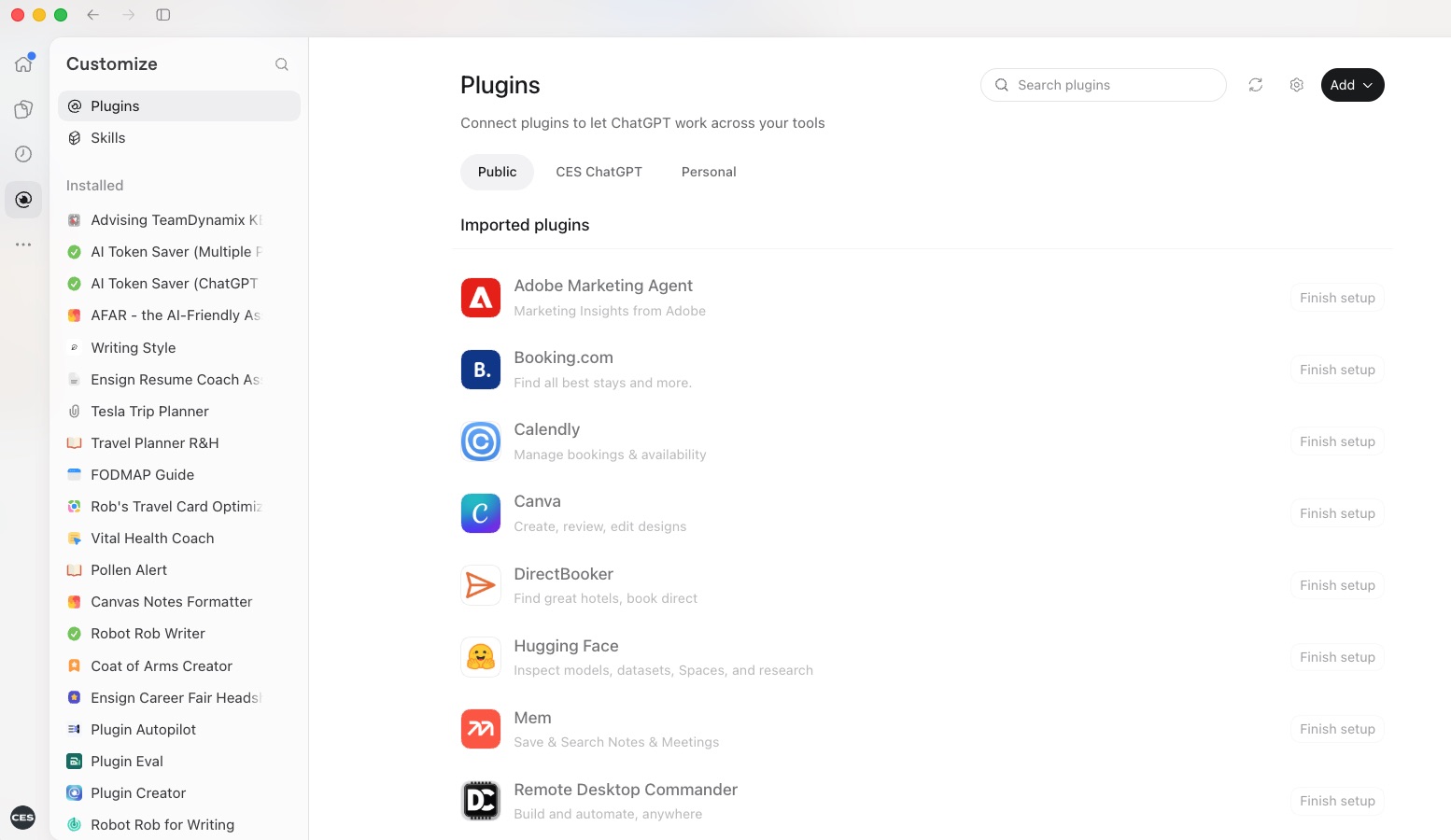
In the desktop app, select the Customize icon circled on page 1, then choose Plugins. Select Public to browse, CES ChatGPT for shared CES tools, or Personal for plugins you created or received.

ChatGPT Customize screen with Plugins selected, Public selected, a Search plugins field, and CES ChatGPT and Personal tabs.
In Customize, choose Plugins. Public shows the directory; CES ChatGPT and Personal show other plugin collections.
Your CES collection

Choose CES ChatGPT, then add a plugin

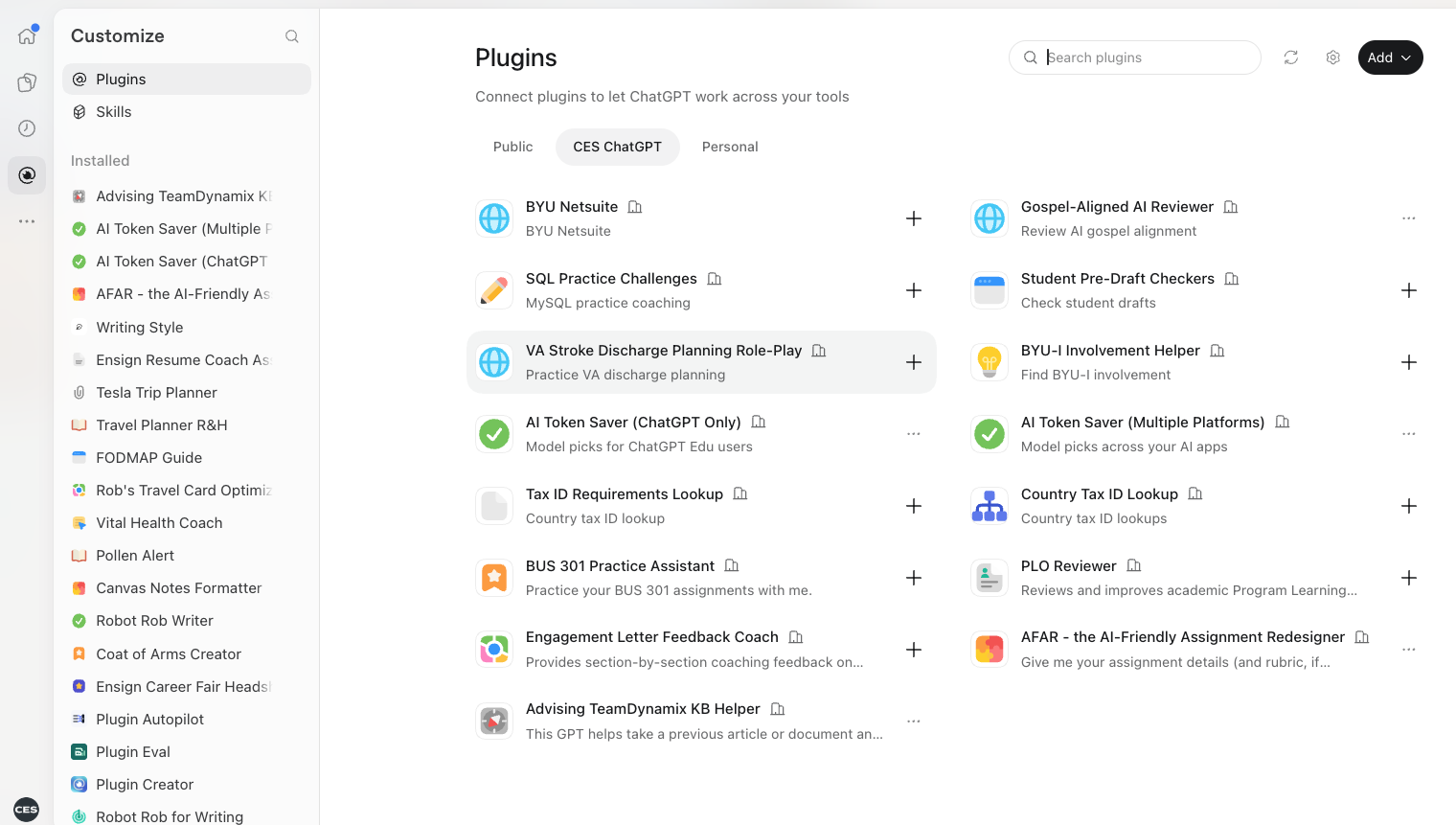
CES ChatGPT workspace tab selected, showing shared plugins including AI Token Saver ChatGPT Only and AI Token Saver Multiple Platforms, with plus buttons beside available entries.
CES ChatGPT is the workspace collection. Shared tools, including former custom GPTs, appear here as plugins.
  1. Select CES ChatGPT. Open the plugin or use its + button, then choose Install plugin if prompted. Complete any required app connection.
  2. Start or open a chat in Work. In that chat, type @ and select the installed plugin, or use + > Plugins where shown. Then describe the task.
  3. For example, select AI Token Saver (ChatGPT Only) and ask: Help me choose a model and effort for this task. In a supported Codex task view, use Sources > Use plugins.

Installing a plugin adds it to your toolbox. Selecting it in a chat brings it to that chat’s workbench, so it can help with the current task using only the connections and permissions available there.

Example: If both apps are available and connected, select Outlook Calendar and SharePoint in one chat. Ask: “Find three open 30-minute slots next week and use our SharePoint kickoff brief to draft an agenda. Cite the brief. Don’t schedule an event or edit the document.”

Open the CES setup guide

06

Tools, skills and plugins

Find useful tools

Start with the work you already do

Google Drive, Gmail, Outlook

Documents and email

Find an approved document, summarize a thread or draft a reply.

Consensus, Quizlet

Research and study

Explore research or build practice flashcards, where available. Check sources and accuracy.

Canva

Design

Turn an outline into an event flyer, where available. Review the result before sharing.

Also check Calendar, SharePoint, Slack, Teams and Notion. Availability varies. Use approved campus services and de-identified examples; follow your student-data policy.

Make, build or borrow

Turn a task you repeat into a skill

Make a skill

You repeat a focused task, such as a weekly update or a document review.

Make a plugin

A workflow needs connected services or a bundle your team can reuse.

Install one

Search the Plugins directory before building a tool that already exists.

  1. Name one repeated task and its required result.
  2. Use Skill Creator where available. Describe the goal, steps and output format.
  3. Test with de-identified examples and refine the instructions.
  4. Share where your workspace permits. Name a maintainer and provide example prompts.

Good first skills: meeting notes to action items, policy-template checks or clearer help articles.

Habits from a working setup

Six habits that make AI more useful

  • Name the task, the tools and the result you want.
  • Ask ChatGPT to challenge your request if it is unclear.
  • Keep a short handoff in each project: done, next and open questions.
  • Verify facts and saves before you rely on them.
  • Search for an existing tool before you build one.
  • Add one new habit at a time.
Know the difference

A skill handles a task. A plugin bundles a workflow.

SkillPlugin
PurposeReusable task instructionsSkills, files and connected capabilities
ToolsUses tools available to the taskMay include connected apps
SharingAccount and workspace controlsShare intentionally; apps authorize separately
07

Migrate GPTs and go further

If you built custom GPTs

Move your GPTs to plugins before they retire

Custom GPT retirement is scheduled for December 11, 2026.

What moves

Published GPT instructions become a skill. Reference files and supported connected apps can move with the plugin.

What needs attention

Custom actions and sharing settings need review or rebuilding. Existing conversations remain accessible.

Your move

When available, open My GPTs > Migrate to plugin. Test familiar requests in the same workspace before switching.

Follow your account or campus notice. For affected Enterprise workspaces, October 26 is the planned end of new GPT creation.

Advanced

Ready for more? Codex works with code

Codex is a third mode for code, tests and repositories. It is a great tool if you want to use AI to create an app or website. Try it once Chat and Work feel routine.

Write and fix code

Describe a script or bug. Codex edits the files and runs the checks.

Work in a repository

Connect an approved code repository and ask for a change you can review before it lands.

Automations

Codex automations run on their own schedule, separate from ChatGPT Scheduled tasks.

Use Codex only with code and data your campus allows. Review every change before you use it.

Try these next.

0 of 8 complete

Checklist progress is saved in this browser when local storage is available.

Sources and current guidance